We built an iPhone app
Andrew Geerdts · 29 October 2026 · 3 min read
The Umbel app for iPhone opens on your card and pulls down to show its QR code. The same code goes on your Home Screen as a widget, and onto the Lock Screen for the hours you are handing out cards. It also scans paper cards, writes NFC tags and works with no signal.
The app is built and we are testing it before it goes to the App Store. It signs in to the same account as the web app, and the cards, contacts and scans are the same records, so a change in one place is there in the other.
What an app adds is that the cards are already on the phone. There is no tab to find and no page to wait for while somebody watches you.
The card is the app
The first screen is your card, drawn by the renderer that draws it for the person you hand it to, at the size of the phone. Swipe sideways to reach your other cards, and tap the one in front to open it.
Turn on Edit and the parts of the card become the controls, so a change happens on the card rather than in a form next to it.
Pull down for the code
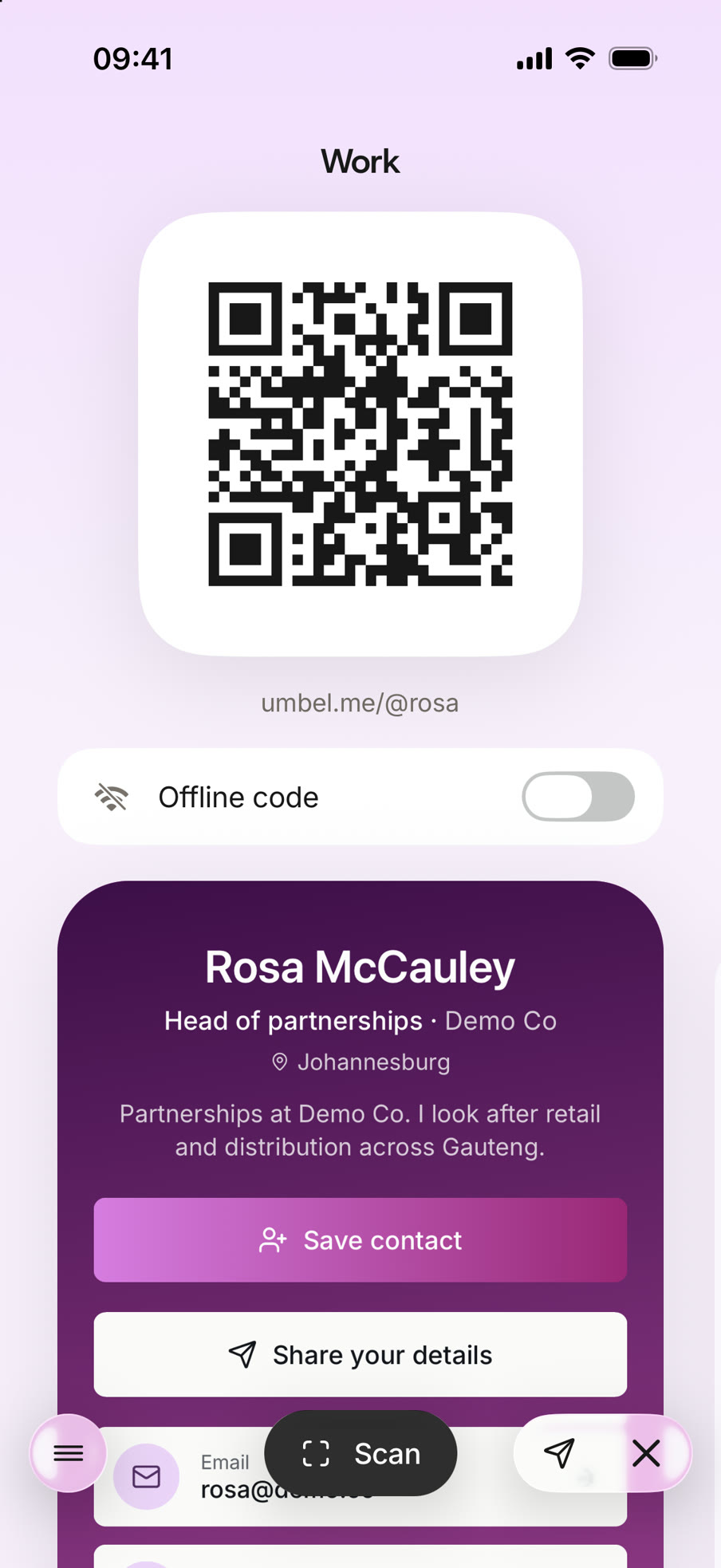
Drag the card downwards and its QR code comes over it. There is an offline code as well, which holds your details inside the code instead of linking to them, for a room where the reception has given up.
Share, without leaving the card
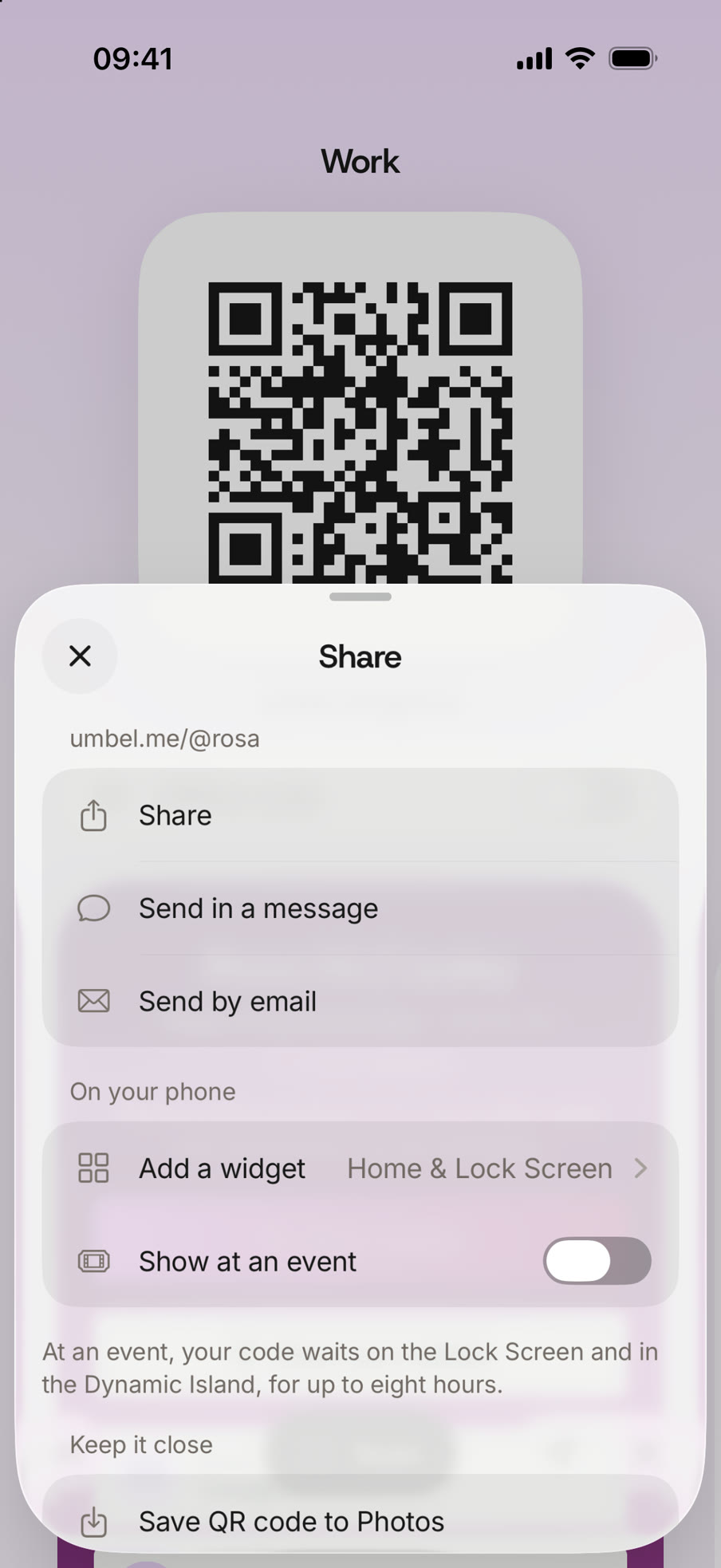
The Share sheet sends the card in a message or by email, hands it to any other app on the phone, saves the QR code to Photos, writes it to an NFC tag, and adds the card to Apple Wallet through Apple's own button.
A code on the Home Screen
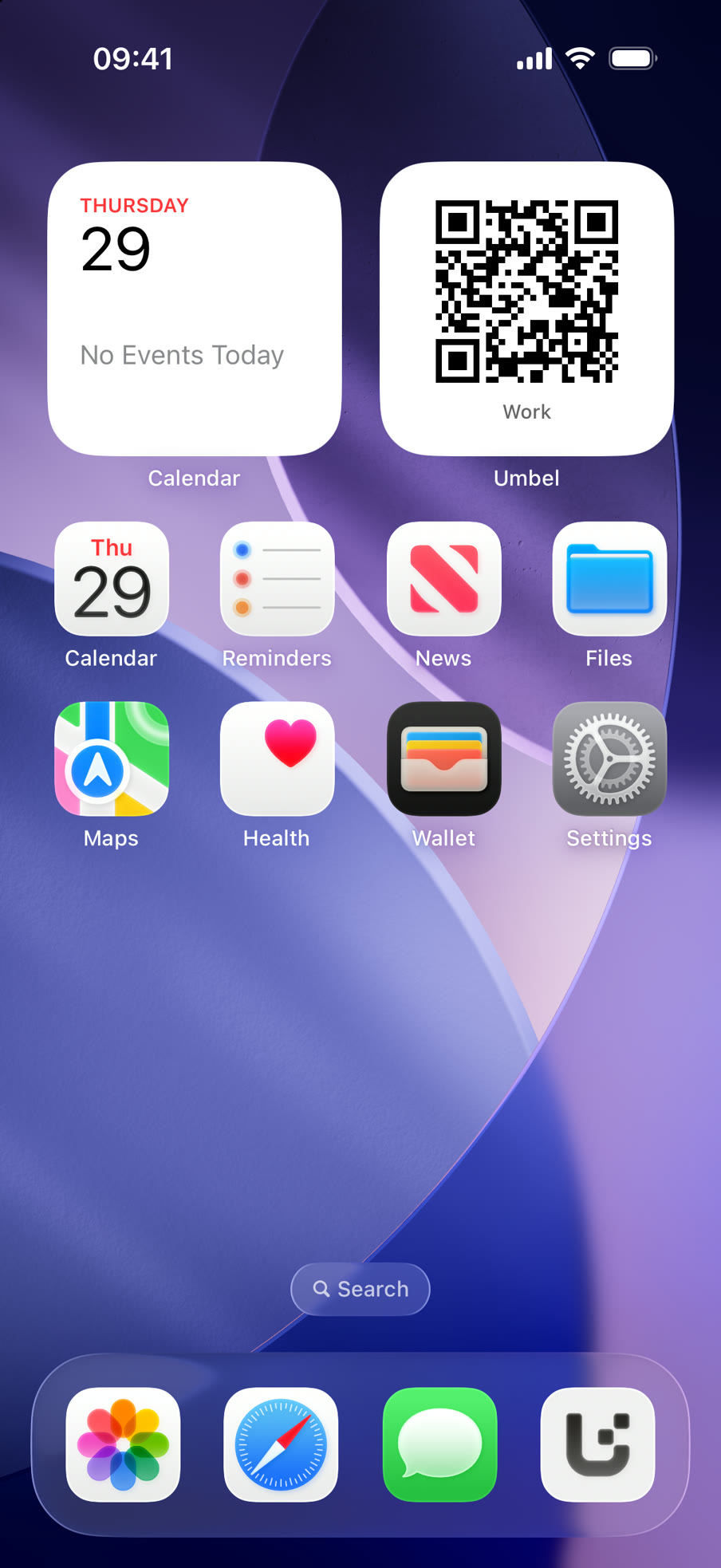
The My card widget puts a card's QR code on the Home Screen, where it scans from the wallpaper without opening anything. Its settings choose which card it shows and whether the code is the offline one, and it redraws when that card changes rather than on a timer.
On the Lock Screen
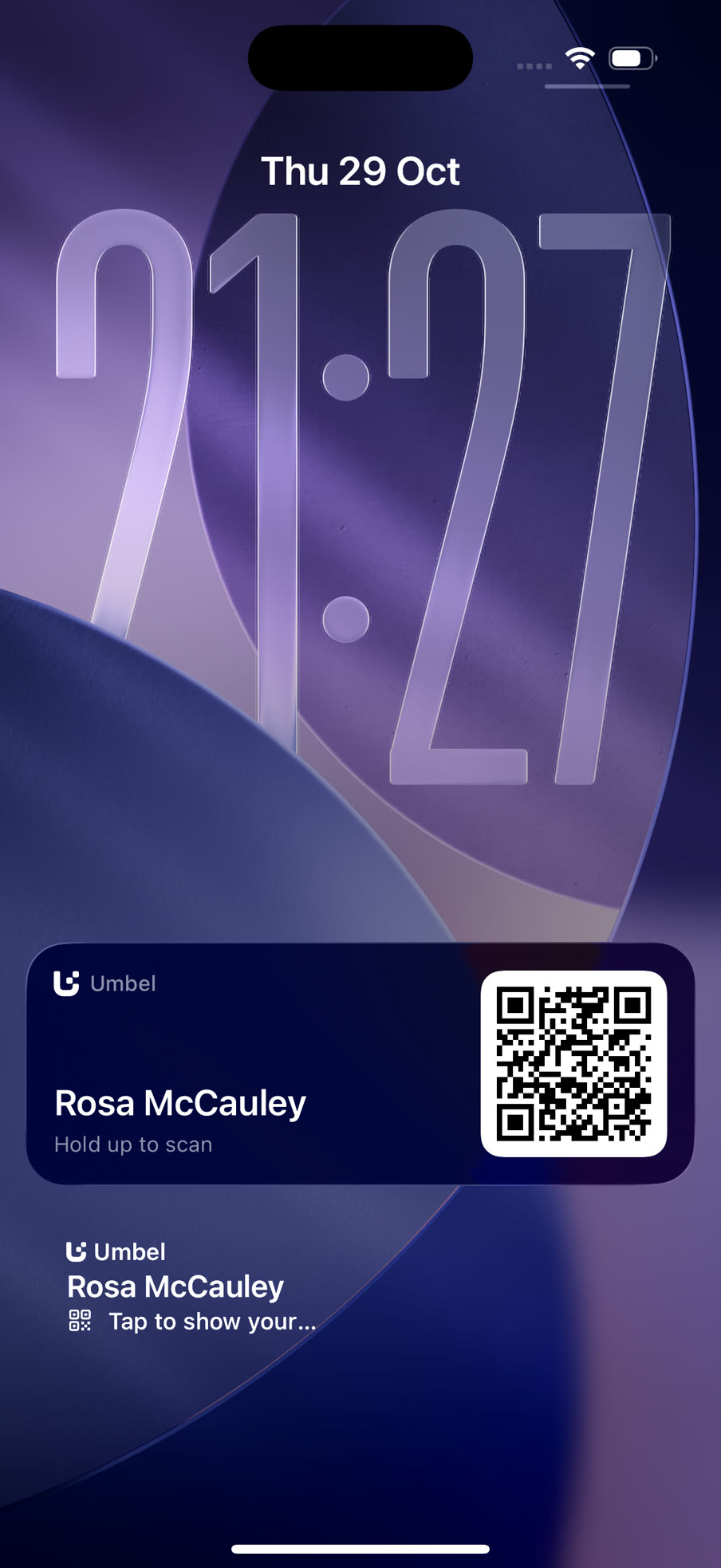
The same widget goes under the clock, where it gives the card's name and opens the code in one tap. iOS tints a Lock Screen widget and draws it small, which is no size for a code somebody has to scan.
For a conference day there is Show at an event, which pins the card to the Lock Screen as a Live Activity. The code can be held up without unlocking the phone, and it sits in the Dynamic Island while you use something else. The phone takes it down after eight hours.
Scanning, the other way round
Scan is at the foot of every screen. Photograph a paper card and carry on with the conversation: the photos are read in the background, and each one waits as a set of fields to check before it becomes a contact.
The people you meet
Contacts are the same list as the web, newest first, each one marked with how it arrived: a QR code, an NFC tag, a wallet pass, the form on your card, an import or a scan. Select several and write them into the phone's own contacts in one pass.
With no signal
Cards and their pictures are kept on the phone. Without a connection the app says so and shows them anyway, and the offline code still scans.
What is next
The App Store listing is being prepared, and the Android app follows it. Everything above is on umbel.me as well, so nothing has to be set up twice.